Claude (Web/Desktop)
Add Firmable as a custom connector in Claude (Web) and Claude (Desktop).
Add the Firmable MCP server as a custom connector in Claude so it can query Firmable data inside your conversations.
Claude (Web)
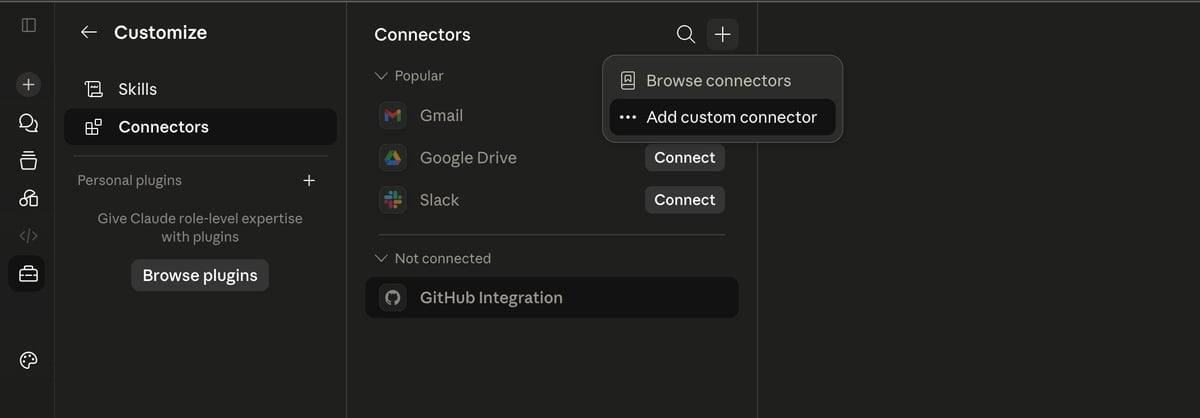
Add a custom connector
Go to the Connectors tab, click the +, and choose Add custom connector.
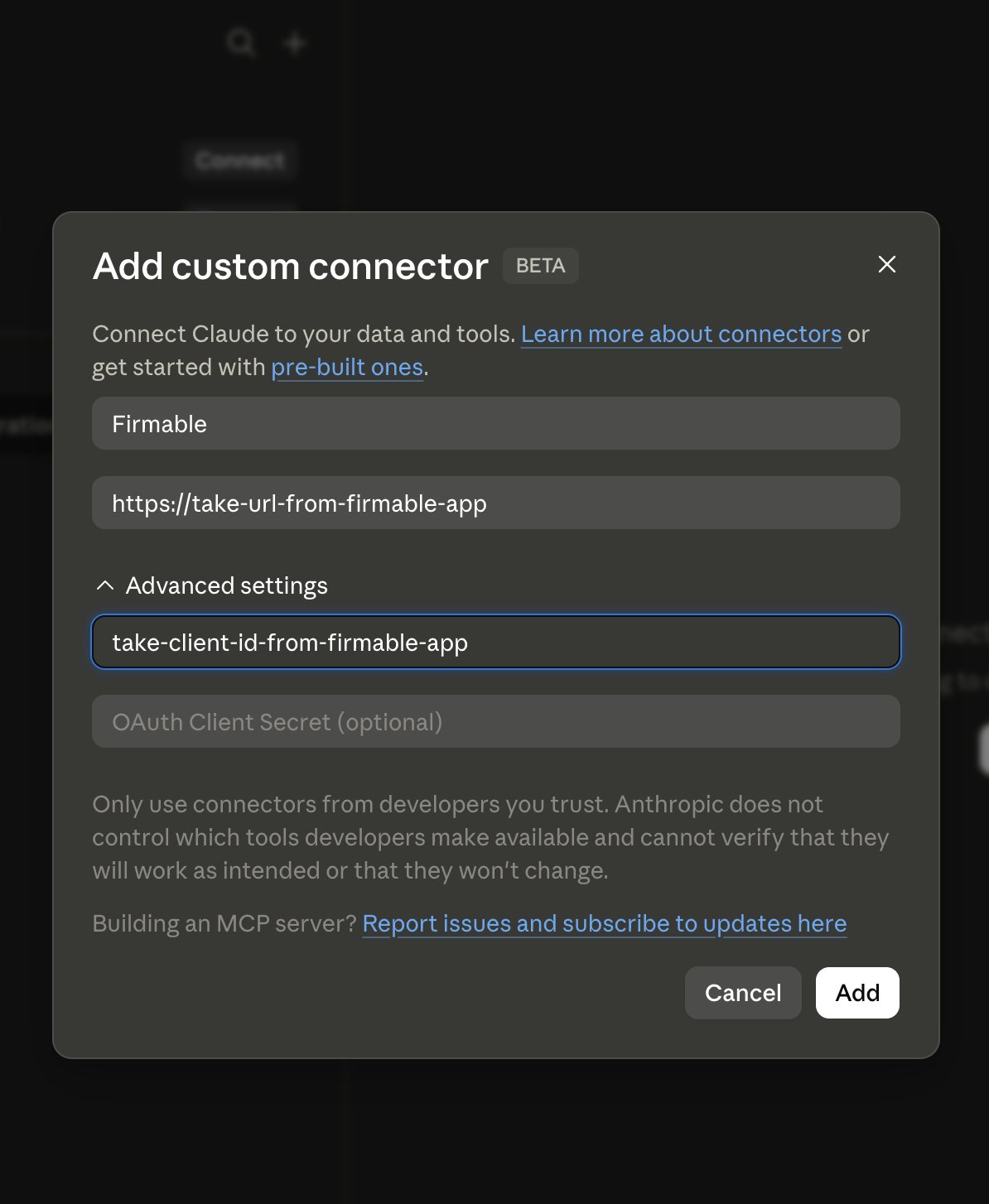
Enter the Firmable MCP details
- Name: anything you like — this guide uses
Firmable - Remote MCP server URL: the MCP URL
- Expand Advanced settings and enter your OAuth Client ID (your Firmable Client ID).
Find the MCP URL and Client ID on URL & Client ID. Then click Add.
Connect
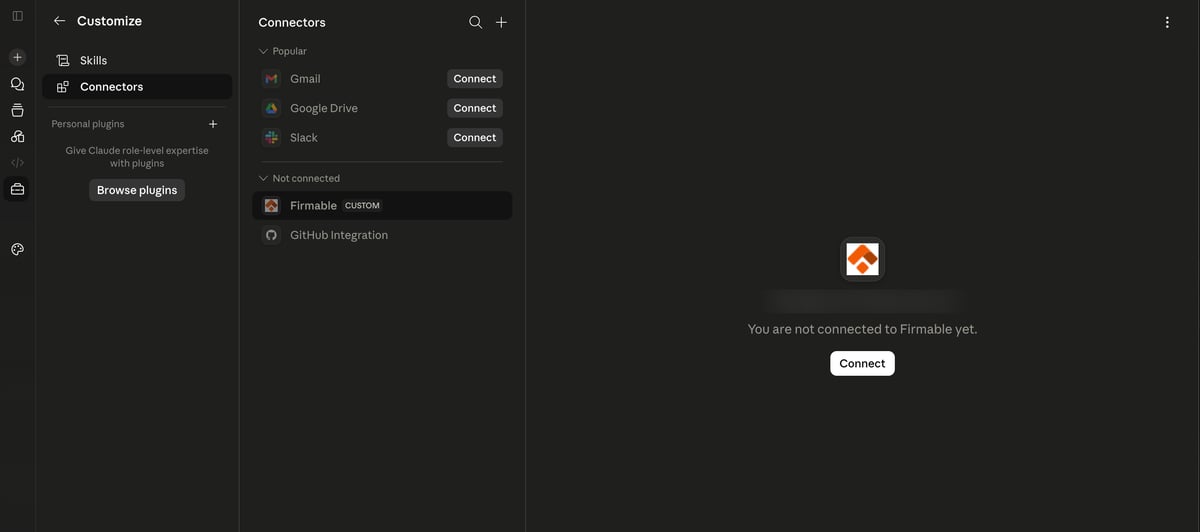
Firmable now appears under Not connected. Select it and click Connect.
Authorize
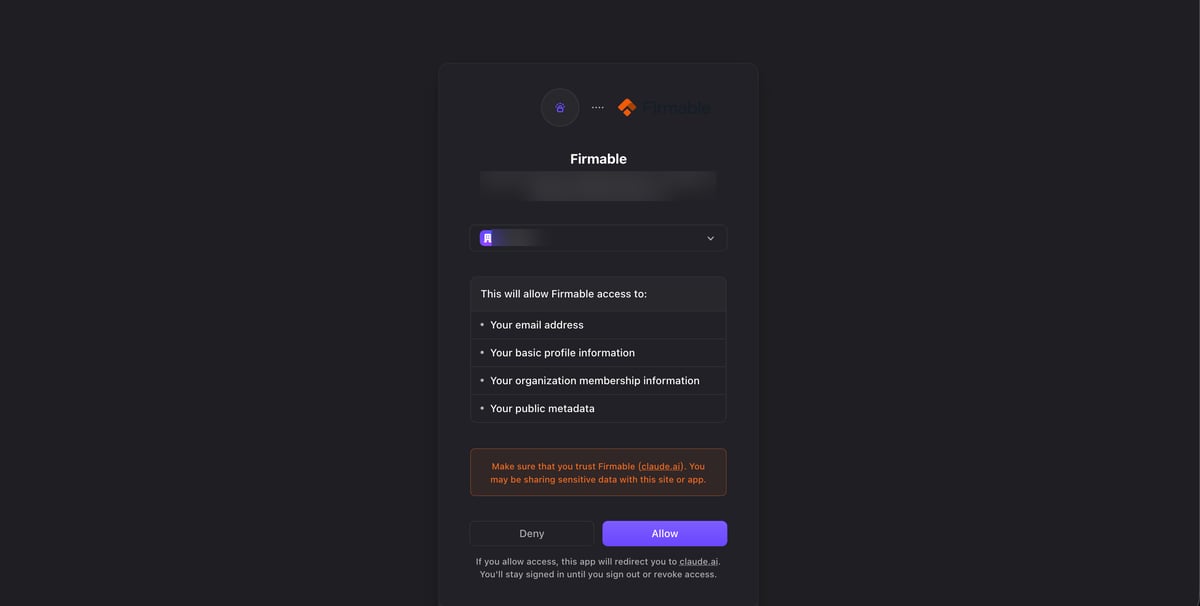
Sign in to Firmable and click Allow to authorize the connection.
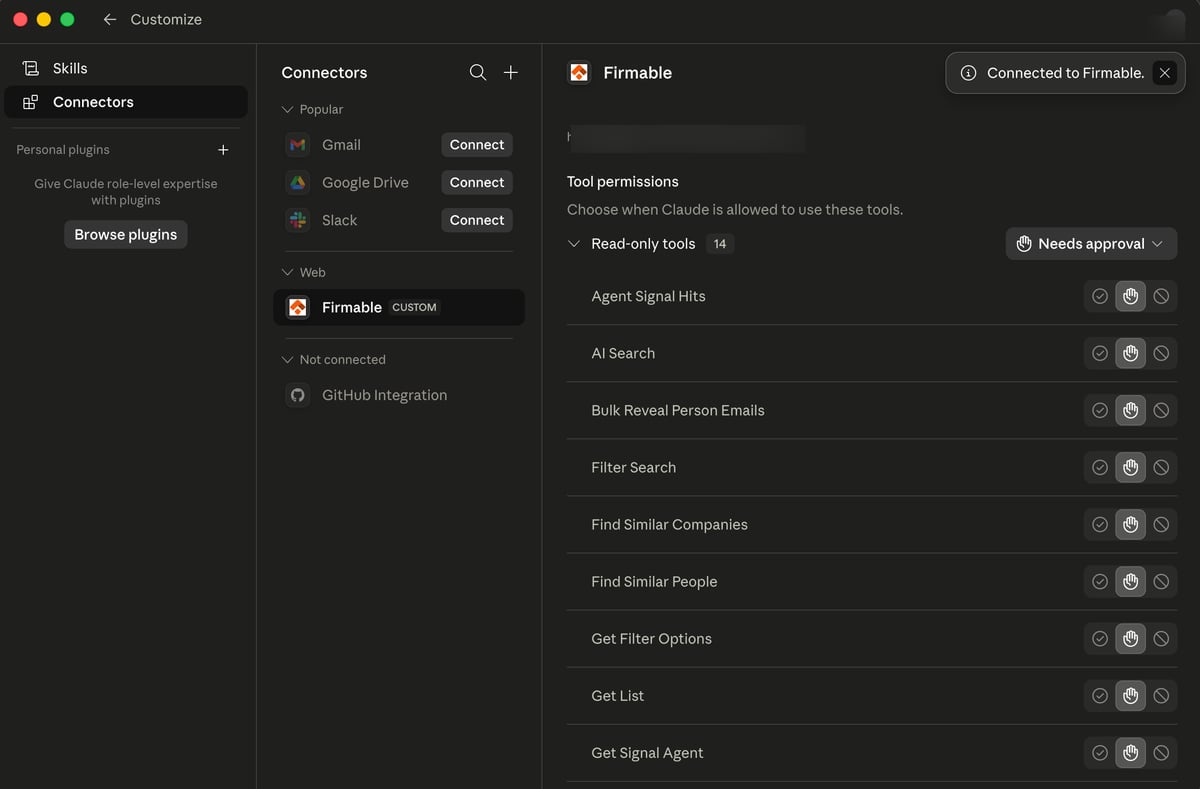
Review tool permissions
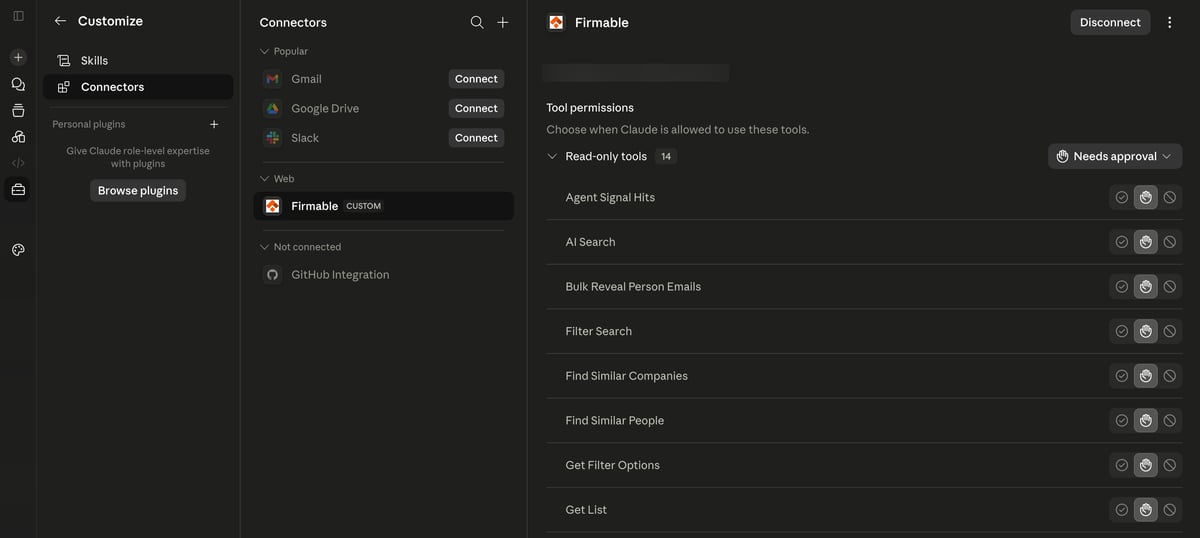
Once connected, choose when Claude is allowed to use each Firmable tool, then start using it in a chat.
Claude (Desktop)
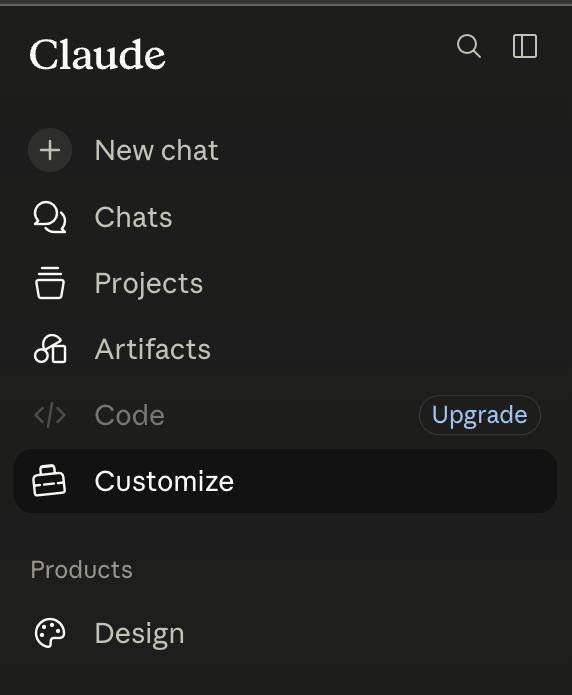
Open Customize
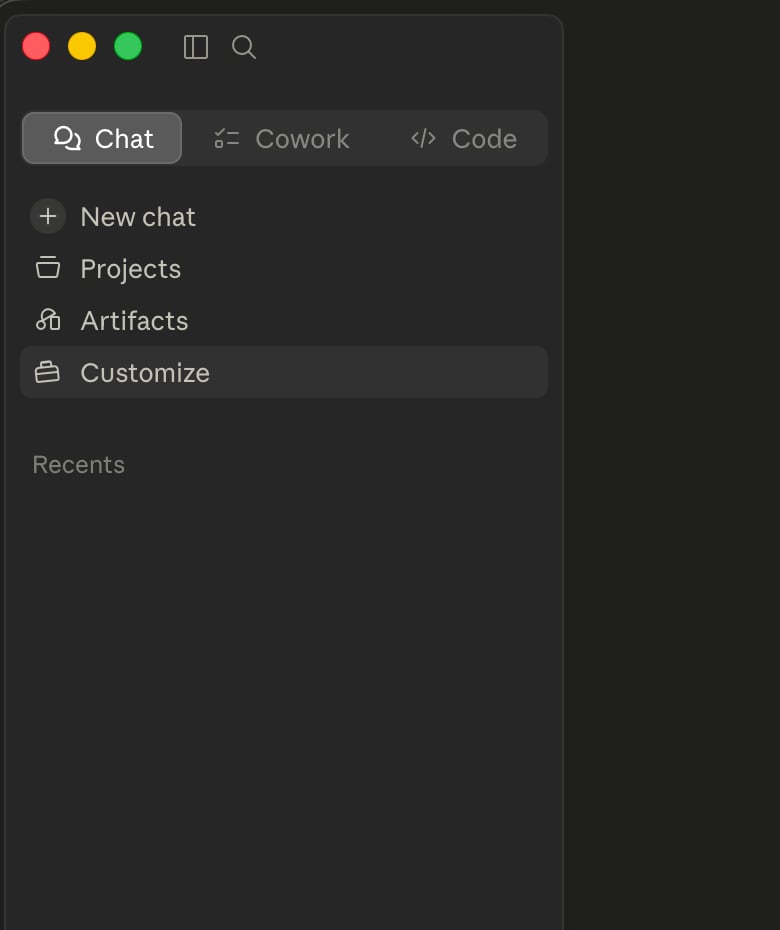
In Claude (Desktop), open the sidebar and click Customize.
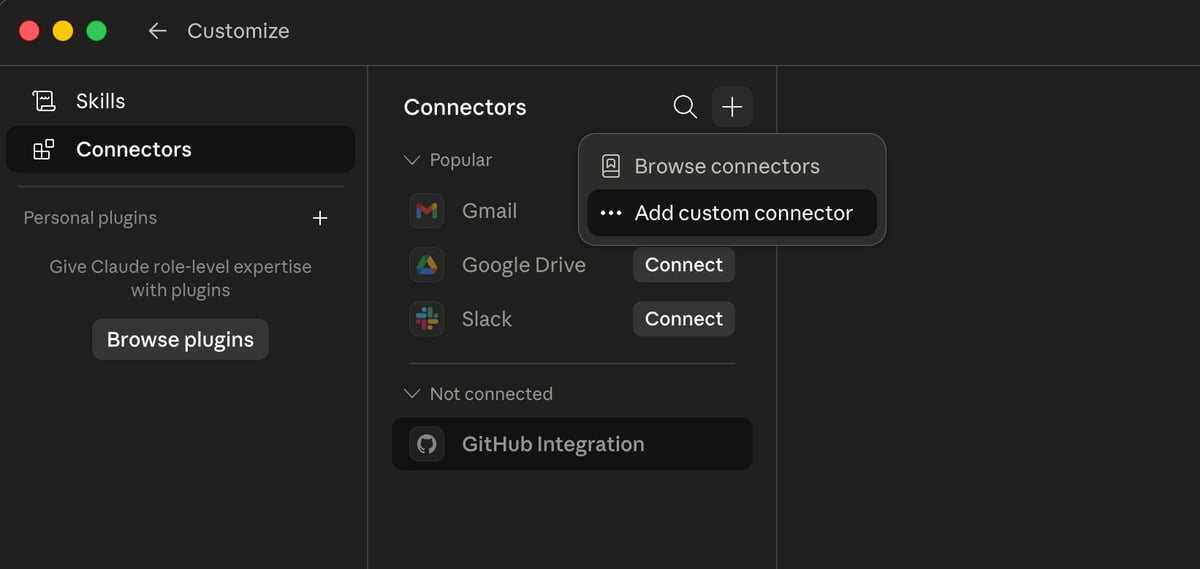
Add a custom connector
Go to the Connectors tab, click the +, and choose Add custom connector.
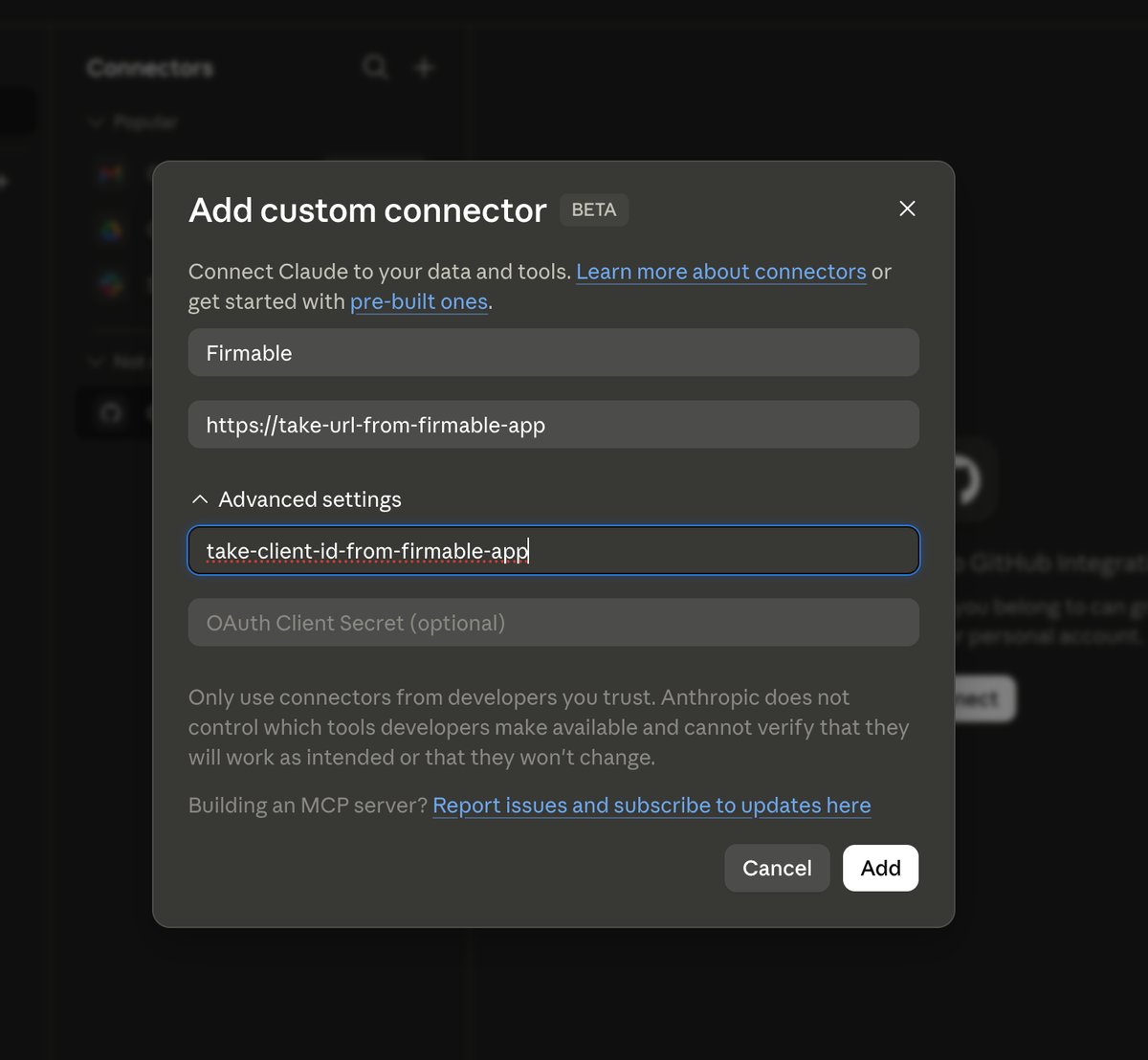
Enter the Firmable MCP details
- Name: anything you like — this guide uses
Firmable - Remote MCP server URL: the MCP URL
- Expand Advanced settings and enter your OAuth Client ID.
Find the MCP URL and Client ID on URL & Client ID. Then click Add.
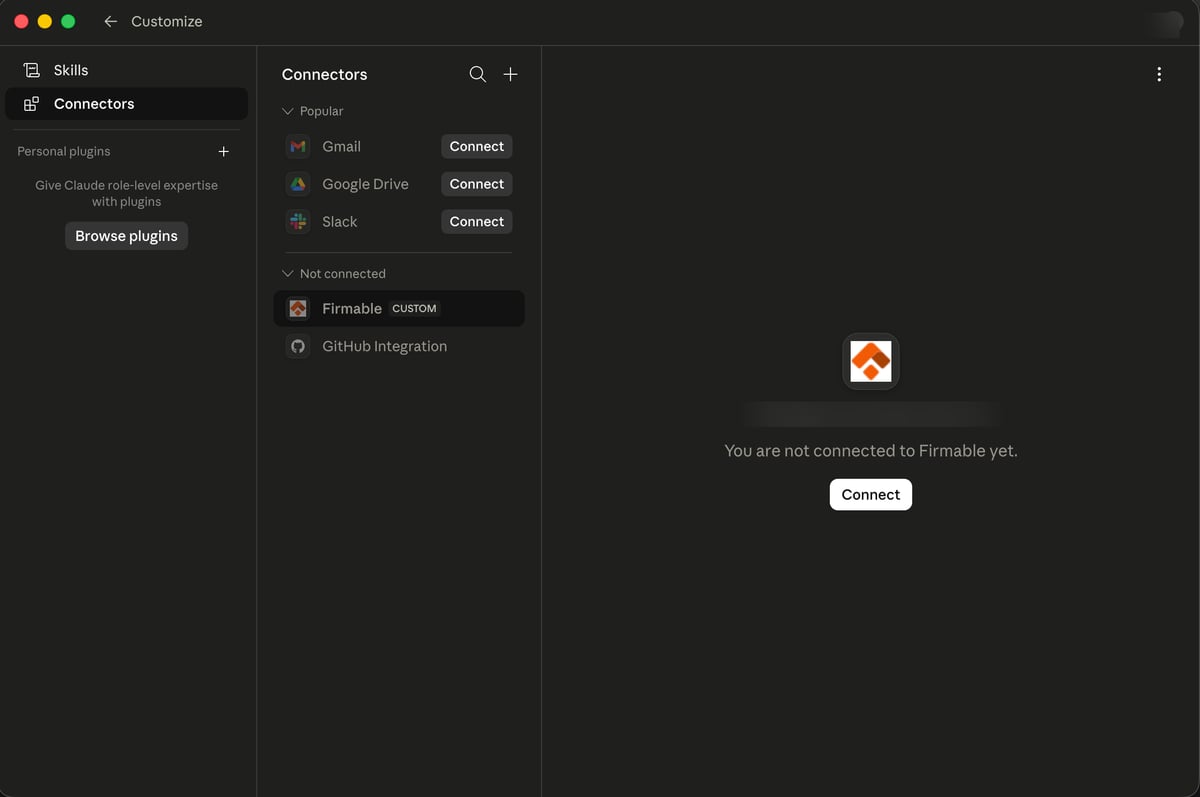
Connect
Firmable appears under Not connected. Select it and click Connect.
Authorize
Claude opens your browser to authorize. Sign in to Firmable and click Allow.
Review tool permissions
Back in Claude (Desktop), Firmable shows as Connected. Choose when Claude is allowed to use each tool, then start using it in a chat.