
MCP
URL & Client ID
Find the Firmable MCP URL and Client ID.
Every MCP setup needs two values: the MCP URL and the Client ID. Here’s where to find them in the Firmable app.
1
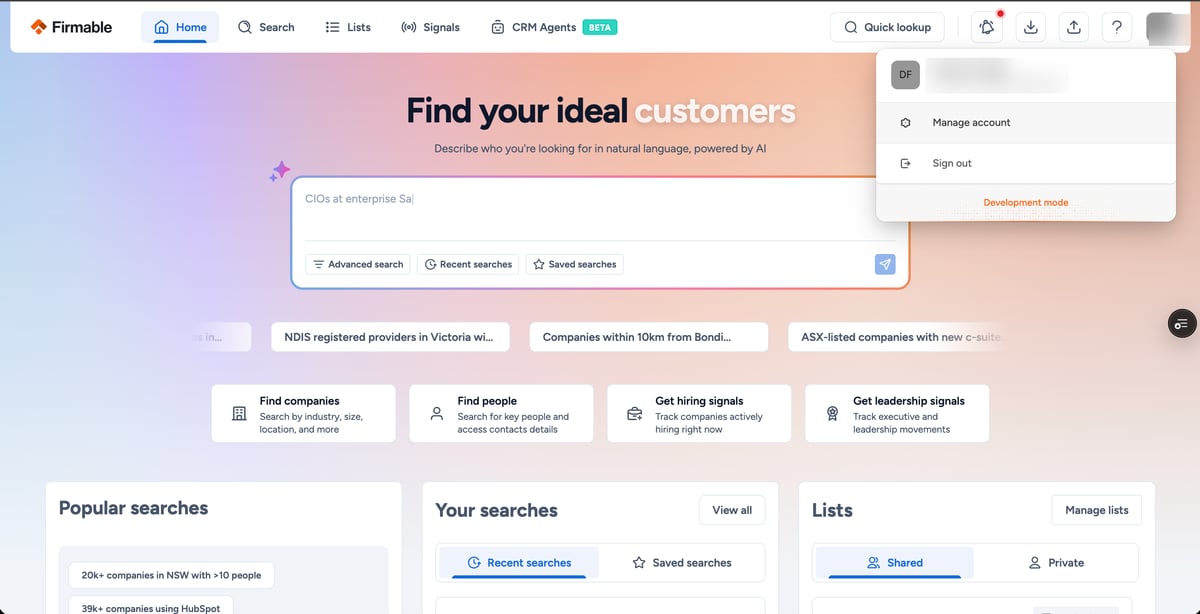
Open account settings
In the Firmable app, click the profile menu in the top-right corner and choose Manage account.
2
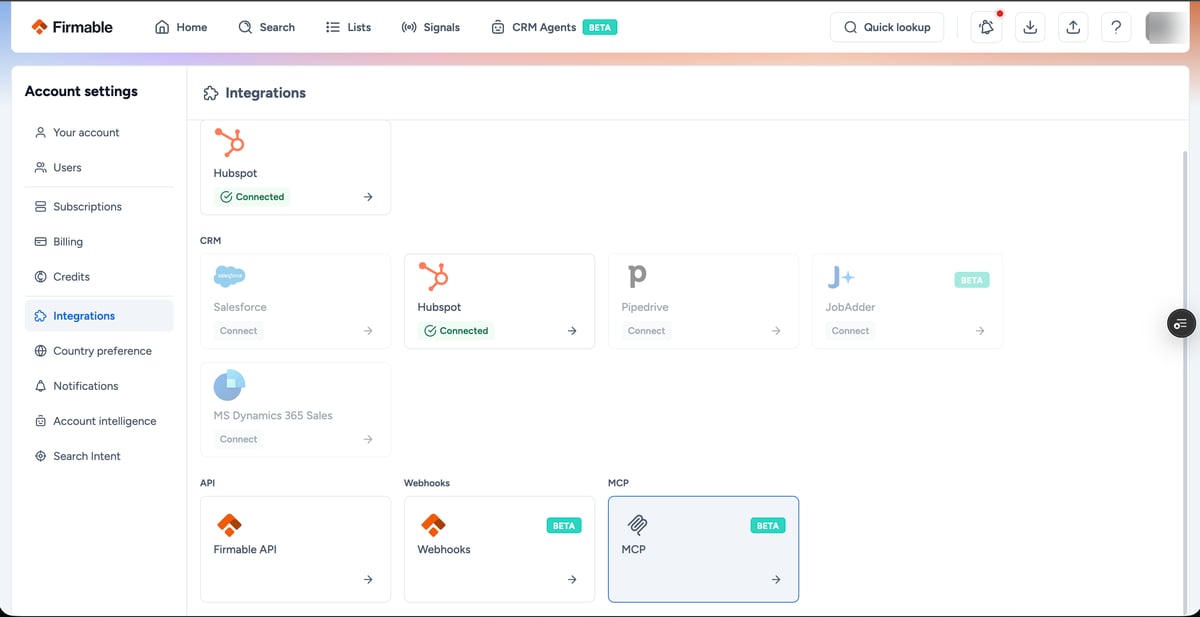
Go to Integrations → MCP
In Account settings, open the Integrations tab and click the MCP card.
3
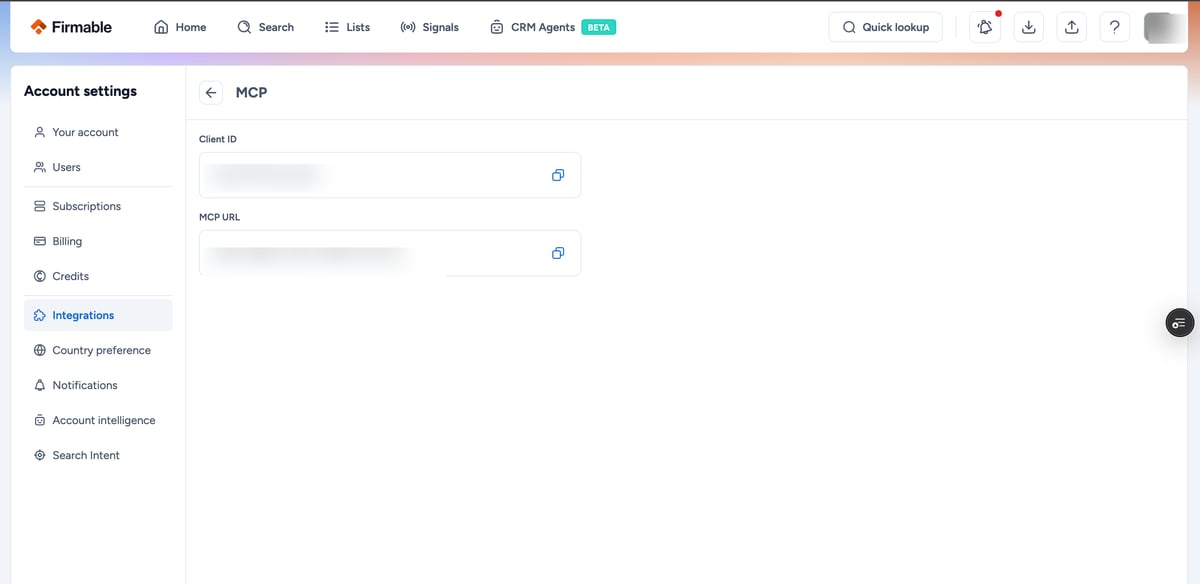
Copy the Client ID and MCP URL
Use the copy buttons to grab the Client ID and MCP URL. Keep them handy — you’ll paste them into Claude, ChatGPT, or your developer tool when adding the connector.
Next
With both values ready, pick your setup: Claude, ChatGPT, or developer tools.